Integrating Asana with Google Workspace is recommended because it connects your work across Google apps and makes it trackable in Asana. Here is a detailed look at how each integration works:
Asana connects to Google Workspace through native integrations: create tasks from Gmail emails, attach Drive files without leaving a task, display deadlines in Google Calendar and turn Google Forms responses into tasks. Sign-in can also be unified through SSO/SAML.
- Gmail: turn an email into a task using the add-on
- Drive: attach files directly to a task or comment
- Calendar: display task deadlines in your calendar
- Forms: generate a task from each response
- SSO/SAML: unified corporate sign-in
Asana with Google Drive
What the integration does:
The Google Drive integration lets you attach files directly to Asana tasks and projects using a built-in file picker. Files embedded in Asana update in real time, ensuring your team always sees the latest version without switching platforms.
Key features
- Attach files directly: Use the built-in file picker to add Google Drive documents, spreadsheets and presentations to tasks
- Real-time updates: Embedded files automatically reflect the latest changes made in Google Drive
- Centralized access: Keep all relevant documents linked to the tasks where work happens
- Integrated notifications: Comments or updates in Google Drive documents appear directly in Asana
- Fewer silos: All document-related conversations stay in one place
How to connect and use it
- Open any task or project in Asana
- Click the Attach button (paperclip icon)
- Select Google Drive from the options
- Browse and choose your file
- Click Attach
Ideal for teams that collaborate extensively on documents and need centralized file access within their project management workflow, especially for strategic planning and shared documentation.
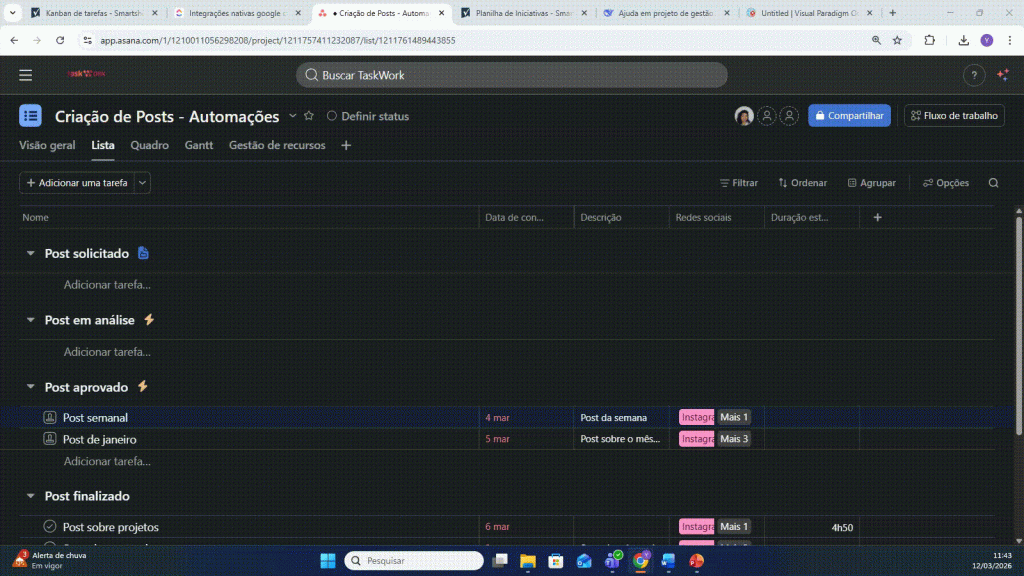
Gmail Rules and Google Workspace add-on
What the integration does
The Asana for Gmail add-on turns emails into trackable work without leaving your inbox. It lets you create tasks from emails with full context, find existing Asana work while composing messages and perform quick actions such as commenting on or completing tasks, all from Gmail’s sidebar.
Key features
Create tasks from emails:
- Create tasks with the email subject and body filled in automatically
- Set the assignee, due date and project directly from the sidebar
- Choose which email attachments to add to the Asana task
- All email information, including attachments, transfers to the task
Search and quick actions:
- Search existing tasks while composing an email
- Comment on tasks directly from Gmail
- Complete tasks without leaving your inbox
Automatic thread synchronization:
- Keep an email thread and an Asana task synchronized
- Future messages in the thread automatically appear as updates in the linked task
- Updates automatically flow to the right place
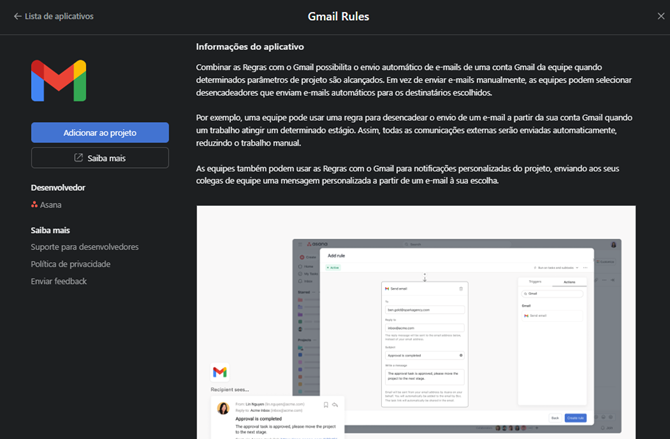
Gmail Rules:
- Add email recipients and details based on Asana rule variables
- Variable support in the fields To, Reply-to, Subject and Body
- Automatically send Gmail emails based on triggers you choose
How to connect and use it
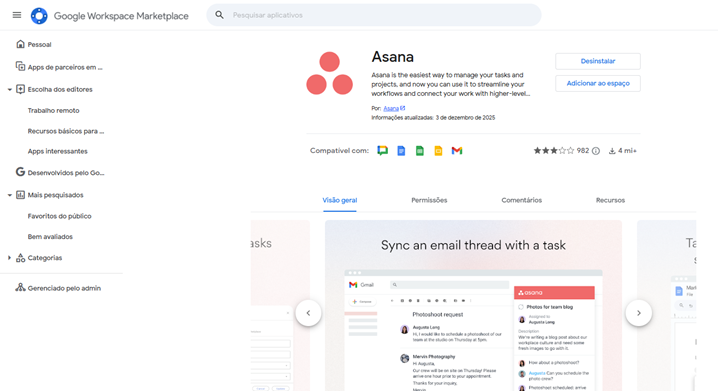
- Install Asana for Gmail from Google Workspace Marketplace
- In Gmail, open any email and click the Asana icon in the right sidebar
- Sign in with your Asana account details and choose your workspace
- After signing in, you will see options to create a new task and search tasks within your email
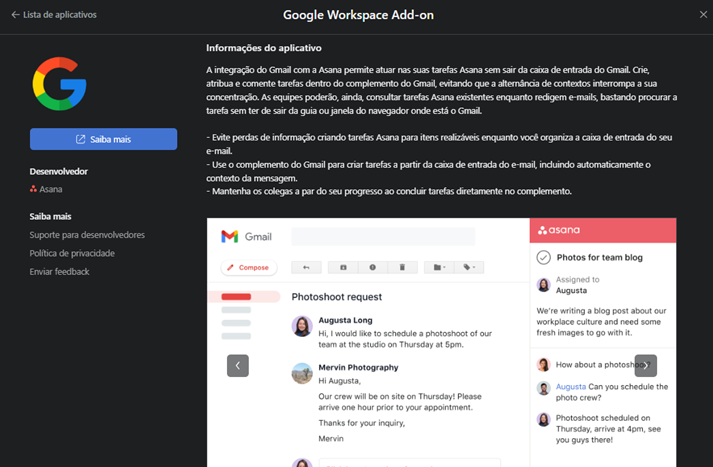
Note for administrators: If you administer your domain, you can install the add-on for the entire organization. An administrator-installed add-on may take up to 7 days to appear.
Compatibility: Works with the Gmail app on Android and iOS.
Ideal for sales and account management teams that work with external stakeholders, need to track important client details and want to prevent action items from getting lost in long email threads.
Asana with Google Calendar
What the integration does
The Google Calendar integration lets you sync Asana meeting agendas and tasks with your calendar, making appointments, deadlines and agenda items easier to track.
Key features
- Due date synchronization: Tasks with due dates and times appear in your Google Calendar
- Meeting agendas: Sync meeting agendas created in Asana with Google Calendar
- Appointment visibility: Team members can easily track upcoming meetings and their associated agenda items
- Time structure: Ensure each meeting topic is covered within its allotted time
How to use it
Assign due dates and times to your Asana tasks, then use Asana’s calendar integrations to sync them automatically with Google Calendar.
Ideal for teams with regular meetings that need structured agendas, as well as professionals who want to see all their responsibilities and appointments in one calendar.

Asana with Google Sheets and the Asana add-on (Docs, Sheets, Slides): Smart Chips
What the integration does
The Google Sheets integration lets you generate detailed reports and turn tasks and projects into custom views.
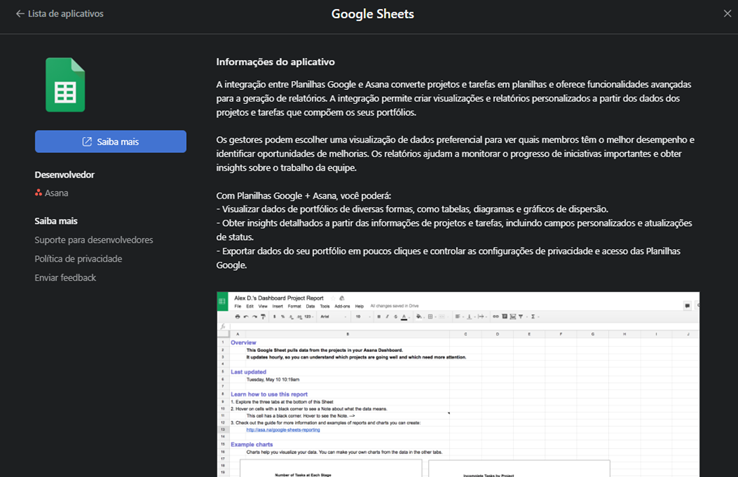
The Asana Smart Chips integration for Google Docs, Sheets and Slides lets you connect and view Asana tasks directly in your Google documents, bridging documentation and work execution.
Key features
- Direct task references: Mention and link Asana tasks within Google documents
- Contextual previews: View task details without leaving the document
- Integrated side panel: Access Asana through the side panel in Google Docs, Sheets or Slides
- Two-way connection: Keep planning documents linked to relevant tasks
How to connect and use it
- Go to Google Workspace Marketplace and install the Asana add-on
- Find the side panel on the right of your Google Doc, Sheet or Slide
- In the side panel, select Asana and click Log In
- Click Allow to grant permission to the Asana add-on
- Click Continue to confirm your email and complete authentication
Ideal for teams collaborating on strategic planning documents, project briefs or technical documentation that need to reference specific Asana tasks and projects.
Asana with Google Forms
What the integration does
Automatically create Asana tasks from Google Forms responses, turning form submissions into trackable work.
How it works
This integration requires a Google Forms plug-in and works with the Gmail integration to send form submissions to Asana. More details are available at https://help.asana.com/s/article/google-forms-and-asana?language=en_US
Ideal for teams receiving work requests, project intake forms or feedback that needs to become actionable tasks.
Asana Chrome extension
What the integration does
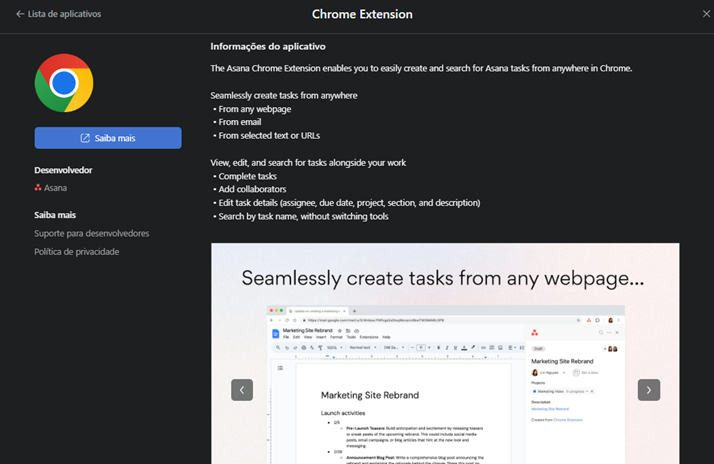
The Asana Chrome extension simplifies work intake, maintains a single source of truth and supports cross-functional collaboration. It lets you create tasks directly from Gmail threads or any web page, edit existing tasks and share details with collaborators, all without leaving your browser.
Key features
- Create tasks from any web page: Capture work from anywhere on the internet
- Automatic content entry: Important information is filled in automatically
- View, edit and search tasks: Access your Asana tasks from anywhere
- Turn conversations into work: Turn informal conversations into structured tasks
- Reduce duplication: Eliminate time spent duplicating information between tools
Compatibility
Fully supported in Chrome and compatible with Microsoft Edge.
Ideal for professionals working across multiple web tools who need to capture work quickly from different sources without disrupting their flow.
Google SSO/SAML
What the integration does
Sign in to Asana with your Google Workspace credentials for simplified, secure and centralized access.
Ideal for organizations using Google Workspace that want to centralize authentication, improve security and simplify user access.
Why integrate Asana with Google Workspace?
- Reduce duplicate work — Keep everything connected without constantly switching tools
- Make conversations actionable — Turn emails and discussions into trackable tasks that do not get lost
- Centralize collaboration — Bring important information from emails, documents and other apps into Asana tasks and projects where you can collaborate effectively
- Maximize productivity — Connect everyday tools to coordinate work and keep everyone aligned
- Improve cross-team clarity — Support effective collaboration and coordination between internal teams and external stakeholders
- Combine with automation — Take integrations further by combining them with Asana rules for automated workflows
At TaskWork, we help companies implement these and other advanced ways of working in Asana. Ready to take your project management further? Get in touch!
Enjoyed this content?
Follow our channel TaskWork for more tutorials, productivity tips and Asana news.
x